
Last updated on September 8th, 2026 at 02:09 pm
Your wrists hurt after long typing sessions, but a full split keyboard feels too extreme.
You’re not alone. Millions of keyboard users live in this middle ground – wanting better ergonomics without relearning how to type on two separate halves. That’s exactly where the Alice mechanical keyboard lives.
An Alice keyboard looks like a standard 60% or 75% board at first glance. But look closer. The left and right halves angle outward, creating a gentle “V” shape that keeps your wrists straight while keeping the keyboard in one solid piece. No tenting kits. No layers of software configuration. Just a smarter shape.

Alice keyboards bridge the gap between traditional straight layouts and ergonomic typing, offering better wrist angles without a fully split design.
In this guide, you’ll learn:
- What makes an Alice layout different from standard and split keyboards
- The real ergonomic benefits (and who shouldn’t buy one)
- Key variants like Arisu and how to choose your first Alice board
By the end, you’ll know if this “split-ish” keyboard is right for your hands – and your wallet.
What Exactly Is an Alice Mechanical Keyboard?
An Alice mechanical keyboard looks familiar at first – it’s one solid piece with keys roughly where you expect them. But look closer, and everything tilts.
Definition: A one-piece keyboard with a tented (angled), columnar stagger that rotates the left and right halves outward, away from each other.
In plain English? The left side points left. The right side points right. Your hands don’t have to bend to meet the keys.

Alice keyboards use a single-piece angled layout that improves wrist position without becoming a fully split ergonomic keyboard.
The key feature is that subtle “V” shape. Most Alice boards tilt each half between 6 and 15 degrees outward. That’s just enough to straighten your wrists without feeling like you’re typing on two disconnected pads.
- Not a true split keyboard – True splits (like the Lily58 or Sofle) are two separate pieces you can move independently. Alice is one rigid piece.
- Not ortholinear – Ortholinear puts keys in a perfect grid. Alice keeps the staggered rows of a normal keyboard, just angled.
Think of the Alice layout as the gateway ergonomic board. Less intimidating than a full split, but far kinder to your wrists than a standard rectangle. If you’ve ever wanted to try ergonomics without rebuilding your muscle memory from zero, this is your starting point.
The Ergonomics – Why This Shape?
Let’s talk about why your wrists actually hurt.
On a standard keyboard, your hands sit parallel to each other. But your forearms don’t. They naturally angle inward toward your body. To force your fingers onto the home row, you bend your wrists outward – away from your thumbs.
That bend has a name: ulnar deviation. Do it for hours, and you get that dull ache on the pinky side of your wrist.

Alice layouts reduce wrist strain by matching your natural hand angle instead of forcing straight wrist positioning.
The Alice solution: Instead of forcing your hands to the keyboard, the keyboard angles to your hands. The left half rotates left. The right half rotates right. Your wrists stay straight. Your fingers land exactly where they should.
Now, a quick anatomy note (painless, I promise). Pronation is turning your palm down (like typing). Supination is palm up. The Alice layout doesn’t change pronation – no keyboard can. But it eliminates the sideways wrist bend that most people ignore.
So who actually benefits?
- Chronic wrist pain sufferers (especially ulnar-side pain)
- People with early RSI or carpal tunnel symptoms
- Typists with medium-to-large hands (small hands sometimes over-reach on an Alice)
- Anyone who types more than 4 hours a day
The Alice won’t fix your posture or heal an injury. But it removes one major strain point that standard keyboards ignore. For many users, that’s the difference between typing through discomfort and typing comfortably.
Bottom line: If you’ve ever finished a workday and thought “my wrists feel wrong,” the Alice shape is worth trying.
Alice vs. Arisu vs. True Split Keyboards
Not every angled keyboard is an Alice. Two close relatives often cause confusion: Arisu and true split keyboards. Here’s how they differ.

Alice, Arisu, and true split keyboards differ in angle, layout, and adjustability Alice sits right in the middle for most beginners.
What is Arisu? It’s an Alice variant with a more aggressive angle and a different bottom row. Most Arisu boards use a 7u spacebar (like a standard full-size) instead of the split or 6.25u spacebar common on Alice. The angle is steeper – often 15° or more – which feels more dramatic under your palms.
True split keyboards (like Lily58, Sofle, or Moonlander) are two completely separate halves. You can move them shoulder-width apart, tent them at different heights, or even rotate each half independently. That adjustability is powerful – but the learning curve is real. Most beginners quit within a week.
Where does Alice fit? Right in the middle. You get real wrist-straightening without the complexity of two pieces. Arisu is for people who want more angle than Alice but still want one board. True splits are for ergo veterans or those with specific pain points.
- Beginner to ergonomics → Alice
- Tried Alice, want more angle → Arisu
- Need full adjustability or have shoulder issues → True split
Key Features to Look For
Shopping for an Alice board? These five features separate a keeper from a regret.
1. Hot-swap PCB – Non-negotiable. Alice boards are often built once and kept for years. You will want to try different switches without desoldering. Hot-swap lets you swap from tactile to linear in 10 minutes.
2. VIA/QMK support – Many Alice layouts have non-standard bottom rows (e.g., two spacebars, a short right shift, or an extra B key). Without VIA or QMK, you’re stuck with whatever keymap the manufacturer chose. With it, you remap everything in a browser.
3. Case material matters more than you think – Acrylic is the classic choice; it shows off the signature angle and glows beautifully with RGB. Aluminum feels premium and deadens ping, but it’s heavy. FR4 (a fiberglass composite) keeps costs down – expect barebones kits around $60-80.
4. Tenting options – Some Alice boards (like the Keebio Quefrency’s Alice variant) include built-in tenting feet. Tenting tilts the board toward you, reducing wrist extension. Not essential, but a huge upgrade if you already have wrist pain.
5. Stabilizer count – This catches first-time builders off guard. A standard 60% has three stabilizers. An Alice often has four: left Shift, right Shift, Backspace, and the main spacebar. Some variants use two spacebars, each needing its own stabilizer. Check before buying keycaps – you may need extra 2u stabilizers.Pro tip: Buy a kit that includes stabilizers, or you’ll be waiting another week for shipping.
Typing on an Alice – What to Expect
The first time you put your hands on an Alice, it will feel wrong. That’s normal.
Video credit: (JonjonTech YouTube channel)
The learning curve is about 1–3 days of regular typing. The first two hours are the strangest – especially the B and T keys. On a standard board, your left index finger hits both. On an Alice, the column angles trick your brain into thinking those keys moved. They didn’t. Your finger just approaches from a different direction. (If you want to rebuild your speed faster, check out our guide on [How to Type Faster and Increase Your WPM] .)
Finger travel changes in a way you’ll appreciate by day three. Your index fingers now reach inward (toward the center of the board) instead of straight up. That means less stretching. Your pinkies also get a break – the angle reduces the distance to far corners like Enter or Backspace.
- Hitting Y with your left hand (it’s still a right-hand key – but the angle lies to your muscle memory)
- Missing the spacebar entirely on split spacebar versions (your thumb finds the gap instead of the key)
- Accidentally brushing the extra inner column keys (some Alice boards add a B on both halves)
By day four, you won’t want to go back to a rectangle.
Who Should NOT Buy an Alice?
The Alice layout is brilliant – but not for everyone. Save your money if any of these apply.
Small hands. The angled columns stretch the distance to inner keys (like B, G, H). If you already struggle reaching T or Y on a standard board, an Alice will frustrate you, not help you.
Floating wrists. The ergonomic benefit comes from planting your palms and letting the angle straighten your wrists. If you type with hovering wrists (common among gamers and piano players), the angle barely matters. Stick to a standard layout.
Gamers who need mirrored left-hand keys. Many Alice boards shift the left cluster (Q,W,E,R) slightly left or rotate it. That throws off muscle memory for ability keys in shooters or MOBAs. Competitive gamers should avoid.
Budget under $100. Quality Alice kits start around $120–150 (PCB, case, plate). Sub-$100 options exist, but they use cheap FR4 trays, non-hot-swap PCBs, or missing stabilizers. You’ll spend more fixing or replacing. Wait until you can spend properly.
Bottom line: Alice solves specific problems. If you don’t have those problems, don’t force it.
Best Beginner Alice Keyboards
Once you’ve decided that an Alice layout is right for your hands and typing style, the next question is obvious: which board should you start with?
The market has exploded with beginner-friendly Alice options over the past two years. Below are four of the best entry-point boards, ranked by overall value, build quality, and beginner experience.
- EPOMAKER Alice 66 – Best for: Beginners who want a premium feel (gasket mount) in a compact package. Skip if you need arrow keys or wireless.
- LEOBOG A75 – Best for: Gamers who want rapid trigger and magnetic switches. Skip if you prefer traditional mechanical switches or need Bluetooth.
- ATTACK SHARK AKS068 – Best for: Budget buyers who still want a knob and tri-mode wireless. Skip if you want aluminum build or VIA/QMK support.
RK ROYAL KLUDGE A72 – Best for: Typists who want volume control and dual dampening for quieter typing. Skip if you need a compact 60% footprint.
If these are still outside your budget, check out our general [Best budget keyboards] guide for more wallet-friendly options (including non-Alice layouts).
Why this order: The EPOMAKER Alice 66 takes first place for its premium gasket feel and beginner-friendly software. LEOBOG’s A75 follows closely with innovative magnetic switches – great if you game. Attack Shark offers the best value with a knob and wireless. RK A72 is a reliable, no-surprises starter board, but the layout feels slightly less refined than the others.
All four are hot-swappable, USB-C, and ready to use out of the box. Pick based on your budget and whether you want wireless (Attack Shark) or magnetic switches (LEOBOG).
Conclusion
The Alice mechanical keyboard isn’t a gimmick. It’s a proven middle ground – giving you straighter wrists, reduced finger strain, and a smoother typing experience, all without the complexity of a true split board.
Whether you’re battling daily wrist fatigue or simply curious about ergonomics, the Alice layout offers a meaningful upgrade over standard rectangles. The learning curve is short (1–3 days), but the comfort payoff lasts for years.
Ready to build your first Alice? The switches you choose matter as much as the board itself.
➡️ Check our [Best Switches For Mechanical Keyboards]guide to pair with your Alice build.
FAQs
Yes, most keycaps work fine. The only catch is the spacebar. Some Alice boards use two smaller spacebars (2.25u + 2.75u) instead of one standard 6.25u. Check your board’s layout before buying keycaps.
For casual and single-player games, absolutely. The ergonomic angle is comfortable for long sessions. For competitive FPS (Valorant, CS2, Apex), stick with a standard or true split keyboard. The angled left cluster can throw off muscle memory for ability keys and quick strafing.
Many users report noticeable relief from ulnar deviation pain (the outward wrist bend). By keeping your wrists straight, the Alice layout reduces strain on the pinky side of your wrist. However, it is not a medical device. If you have chronic pain, consult a doctor first.
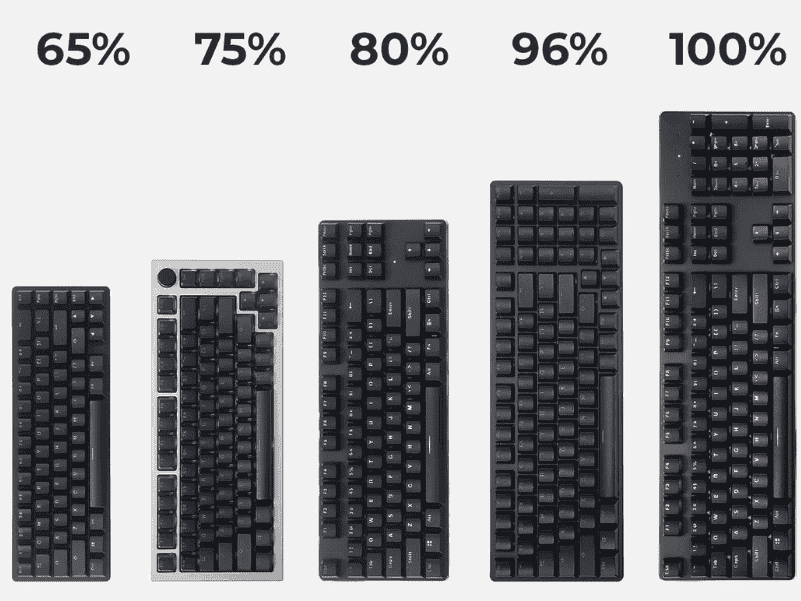
The Ultimate Keyboard Size Guide for Beginners helps you choose the right layout, dimensions, and ergonomics for comfortable, efficient typing and gaming.
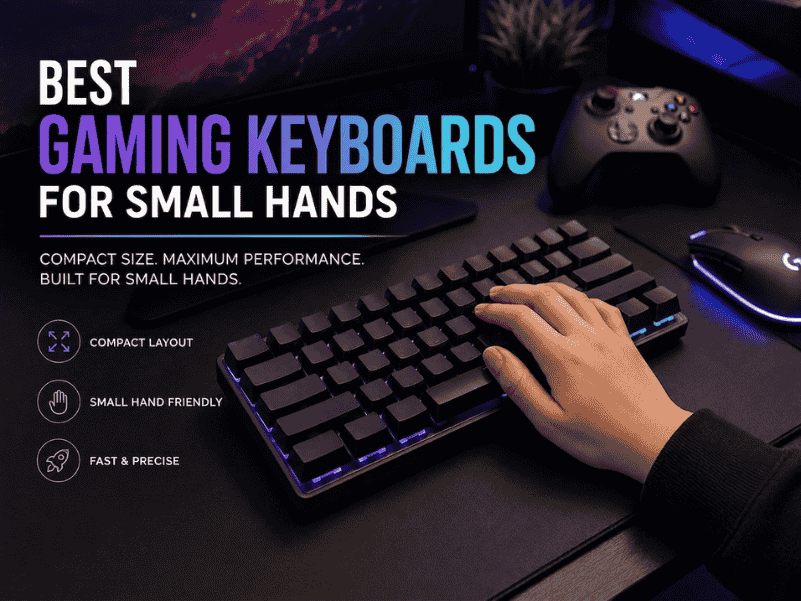
Best gaming keyboards for small hands feature compact layouts, responsive switches, and ergonomic designs for precise control and comfort.
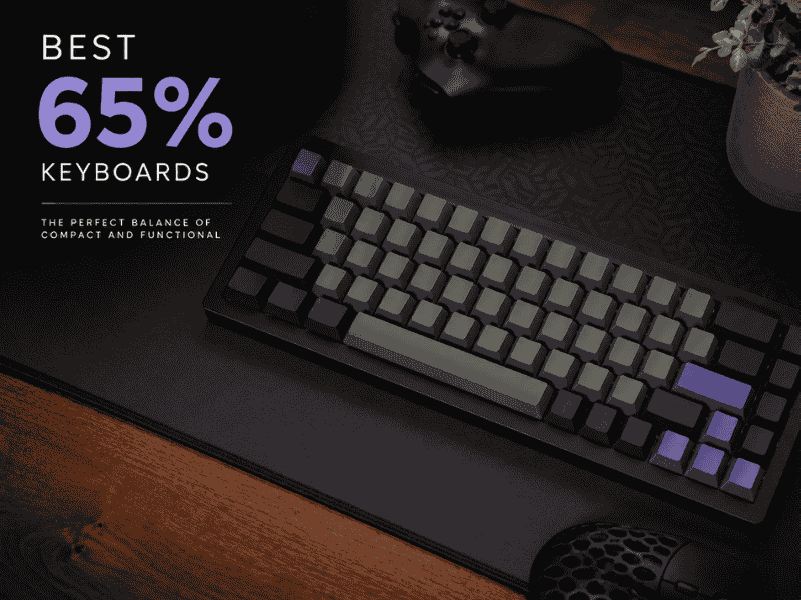
Explore the best 65% keyboards with compact layouts, customizable switches, and premium builds for typing and gaming in tight spaces.
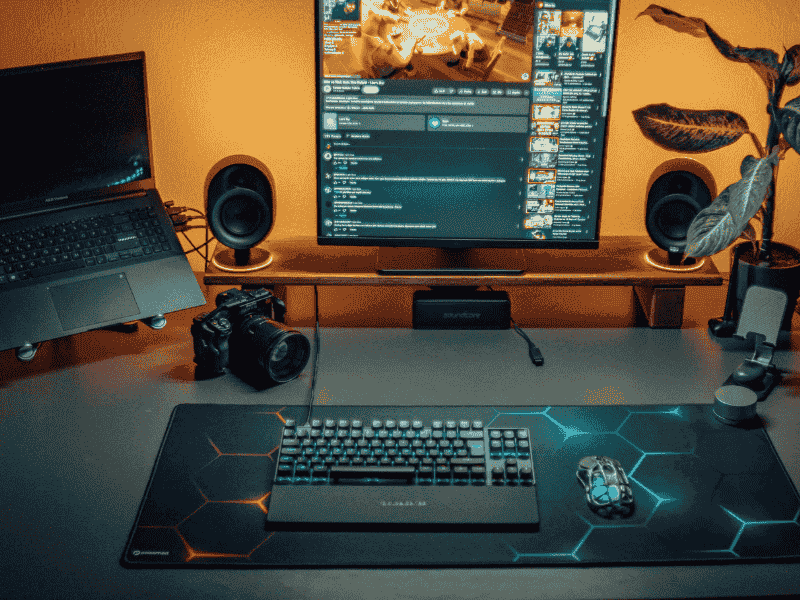
What is a TKL Keyboard? Learn how a tenkeyless layout saves desk space, boosts comfort, and improves performance for gamers and typists.