
Last updated on June 12th, 2026 at 05:58 am
Keyboard size isn’t just about how many keys you get. It shapes how your desk feels, how your body sits, and how smoothly your daily tasks flow.
Desk space is the first thing most beginners notice. Larger keyboards take up more horizontal room, which affects where your mouse sits and how much space you have for other essentials. On smaller desks, this can quickly feel cramped. More compact keyboards free up space and make layouts easier to manage.
Comfort is closely tied to that space. Keyboard width influences how far your hands and arms are positioned. When everything is closer together, many people feel less tension in their shoulders and wrists. The right size helps you sit more naturally, especially during long typing or work sessions.
Portability matters if you move your keyboard at all. Whether it’s commuting, working between locations, or sharing desks, smaller keyboards are easier to pack, carry, and reposition. Full-size boards tend to stay planted, while compact ones are built for flexibility.
Workflow differences are the final piece. Some tasks rely on specific key groups, while others don’t. A keyboard that feels perfect for writing or gaming may slow you down for data-heavy work. Understanding keyboard sizes helps you match the layout to how you actually use your computer, not just how it looks on a desk.
Once you see keyboard size as a practical choice rather than a cosmetic one, picking the right layout becomes much easier.

Minimalistic desk setup with keyboard and monitor, supporting workflow and ergonomic comfort.
Keyboard Size Explained (Quick Overview)
Keyboard sizes are usually described using percentages, and those percentages are simply a way to compare layouts to a traditional full-size keyboard.
A full-size keyboard is treated as 100%. It includes every standard key group: the main typing area, function row, arrow keys, navigation cluster, and the numeric keypad. When you see smaller percentages like 80% or 60%, it means certain key groups have been removed to reduce the keyboard’s overall size.
As the percentage goes down, the keyboard becomes narrower and more compact. Larger layouts sit on one end of the spectrum, while smaller layouts sit on the other. The goal isn’t to remove keys at random, but to save desk space and improve portability while keeping the layout usable.
Keys are removed based on how often people use them. The numeric keypad is usually the first to go, followed by navigation keys or function keys on more compact layouts. Smaller keyboards may also combine multiple functions onto a single key using shortcuts or layers. Thinking of keyboard sizes as a scale from full-size to ultra-compact makes them easier to understand. Once you have that mental model, choosing a layout becomes less about numbers and more about how much space you want to save and how much functionality you need to keep.

Image source: (computerlounge)
Keyboard layout comparison (used for educational purposes)
Full-Size Keyboard (100%)
A full-size keyboard is the layout most people recognize immediately. It includes every standard key: the full alphanumeric section, function row, arrow keys, navigation cluster, and a dedicated number pad on the right. Nothing is removed, and nothing is tucked behind function layers.
This layout is built for people who rely on direct access to all keys. If you work with numbers, spreadsheets, data entry, or software that uses the numpad heavily, a full‑size keyboard feels natural and efficient. For dedicated recommendations in that field, see our curated list of the best keyboards for accountants.
The biggest downside is simple: size. Full-size keyboards take up the most desk space, especially in width. On smaller desks, this can crowd your mouse area and limit how you position your hands. Portability is also limited, making it less practical if you move between workspaces often.
For users who value completeness and familiarity over compactness, the full-size layout remains a straightforward, dependable option.

A full-size keyboard layout with a dedicated number pad, shown in a real desk workspace.
Tenkeyless (TKL / 80%) Keyboard
A tenkeyless keyboard, often called TKL or 80%, removes one thing from a full-size layout: the number pad. Everything else stays intact. You still get the function row, arrow keys, and the navigation cluster, just without the extra width on the right.
This layout suits people who want a familiar typing experience but don’t actually use the numpad every day. Gamers, students, and general users often land here because it frees up desk space while keeping key placement predictable. There’s no relearning curve, and shortcuts still feel natural.
TKL keyboards are popular because they hit a clean balance. They save space, improve mouse room, and feel immediately comfortable if you’re coming from a full-size keyboard. For many people, it’s the smallest size that still feels “complete.”
If you want a deeper breakdown of how TKL keyboards feel in daily use, who they’re best for, and where they fall short, you can explore it here: Read our full TKL keyboard guide

Image source: (Industech)
Tenkeyless keyboard (80% size) shown with all standard keys except the numeric keypad.
75% Keyboard
A 75% keyboard keeps nearly the same keys as a TKL layout, but compresses them into a tighter footprint. The function row, arrow keys, and navigation keys are still there, just repositioned closer together. The goal isn’t to remove functionality, but to remove empty space.
Because of this compression, there’s a small learning curve. Keys like Delete, Page Up, or Home may be stacked vertically or placed closer to the arrows instead of sitting in their usual blocks. Most people adjust quickly, but it doesn’t feel identical to a full-size or TKL layout on day one. The payoff is desk space. A 75% keyboard is noticeably shorter in width than a TKL, giving you more room for your mouse and a cleaner overall setup. For users who want a compact keyboard without jumping to heavy function-layer usage, 75% often feels like the practical middle ground. If you’re curious exactly how many keys that trims compared to full-size, we break it down in how many switches are in a 75% keyboard.

Example of a 75% keyboard layout with a compressed key arrangement.
65% Keyboard
A 65% keyboard takes things a step smaller while keeping one key feature many people refuse to give up: arrow keys. That’s the defining difference. Unlike 60% layouts, you still get dedicated arrows, which makes everyday navigation far less frustrating for beginners.
To reach this size, most navigation keys are reduced or merged. Keys like Home, End, Page Up, and Page Down usually move to a secondary layer, accessed with an Fn key. They’re still there, just not physically separate. The function row is removed entirely. People choose 65% keyboards because they want a compact setup without losing basic usability. You get a noticeably smaller footprint than TKL and 75%, more mouse space, and a cleaner desk, while still retaining arrows for text editing, coding, and general work. For many beginners, 65% feels like the smallest layout that doesn’t cross into ‘too minimal,’ and if you want to see it in action, our best 65% keyboards roundup has picks worth checking out.

Image credit: (Amazon)
A 65% keyboard layout with dedicated arrow keys in a compact form.
60% Keyboard
A 60% keyboard strips the layout down to the essentials. By default, it does not include arrow keys, a function row, or a navigation cluster. Everything beyond letters, numbers, and modifiers is accessed through layers using an Fn key.
That design means heavy reliance on shortcuts. Arrow keys, media controls, and system functions all live on secondary layers. For people who enjoy memorizing key combos or customizing layouts, this can feel efficient. For beginners, it often feels limiting at first, especially for text editing or spreadsheet work.
A 60% keyboard makes sense if desk space is extremely limited, portability matters, or you already know you’re comfortable with layered controls. It’s also common among users who value minimal setups and don’t mind adapting their workflow. It’s usually not a great choice for first-time mechanical keyboard buyers, heavy typists, or anyone who frequently uses arrows and navigation keys. The size is appealing, but the tradeoff is a steeper learning curve that not everyone enjoys.

Image credit: (Amazon)
Example of a 60% mechanical keyboard very small layout with essential keys only.
Smaller Layouts (40% and Below)
Keyboards at 40% and below sit firmly in enthusiast territory. These layouts remove large portions of the standard keyboard, often including the number row, navigation keys, and sometimes even dedicated modifiers. What remains is a highly minimal grid that relies almost entirely on layers.
These boards are not beginner-friendly. Everyday tasks like numbers, symbols, or shortcuts require memorized key combinations, and the learning curve is steep. Productivity usually drops before it improves, if it improves at all. People use these layouts out of curiosity, experimentation, or a love for extreme minimalism. They’re about customization and challenge, not convenience. For most beginners, they’re interesting to look at, but not practical to start with. If ergonomics matter more to you than raw compactness, it’s worth reading about Alice-layout keyboards too, they’re a shape rather than a percentage, built around wrist comfort instead of size.”

Image credit: (Amazon)
An ultra-compact 40% keyboard layout showing only the most essential keys.
Keyboard Sizes Overview Table
Numpad
Arrow Keys
Learning Curve
- Choose full-size if you rely on the numpad
- Choose TKL or 75% if you want familiarity with less desk usage
- Choose 65% if space matters but arrow keys are essential
- Choose 60% only if you’re comfortable learning layers
How to Choose the Right Keyboard Size for You
This is where everything comes together. The “right” keyboard size isn’t about trends or specs. It’s about how and where you actually use your keyboard.
If your desk is shallow or crowded, keyboard size matters immediately. Larger keyboards can push your mouse into awkward positions and limit arm movement. Compact layouts like TKL, 75%, or 65% free up space and make small desks feel less cramped.
On larger desks, space pressure disappears. A full-size keyboard becomes a comfort choice rather than a problem, especially if you like spreading things out.
For gaming, especially with a mouse, desk space and arm movement matter more than extra keys. Smaller keyboards keep your mouse closer and reduce shoulder strain over long sessions, and if hand size is part of your decision too, we cover that separately in our guides to gaming keyboards for small hands and keyboards for big hands.
For typing-heavy work, familiarity and direct access matter more. Layouts that keep arrow keys and navigation keys visible tend to feel more comfortable for long writing or editing sessions.
In a fixed office setup, portability doesn’t matter much. Comfort, workflow, and key access come first. That’s where full-size, TKL, and 75% layouts shine.
For travel, weight and size matter. Compact keyboards fit into backpacks easily and work better with laptops or shared desks.
If you’re buying your first mechanical keyboard, avoid extremes. Layouts that remove too many keys can feel exciting at first and frustrating later.
Starting with a familiar layout reduces regret. Full-size if you use numbers often, TKL if you want balance, or 75% if space matters but usability still comes first.

Image credit: (deskr)
A real desk setup showing how keyboard size fits into everyday workspace needs.
Common Keyboard Size Mistakes
Many people don’t choose the wrong keyboard. They choose it too quickly. These are the mistakes that show up again and again.
Compact layouts look clean and modern, so beginners often jump straight to the smallest option. The problem is discovering later that missing keys slow you down or force constant shortcuts. Smaller doesn’t automatically mean better. Comfort usually matters more than aesthetics.
Most people think about desk width, not depth. A shallow desk can push your keyboard too close to the edge, leaving little room for wrist movement. This becomes more noticeable with larger keyboards and poor positioning. Desk size should shape the keyboard choice, not the other way around.
Navigation keys, arrows, and function keys feel optional until you lose direct access to them. Text editing, spreadsheets, and general productivity rely on these keys more than people expect. Relying on layers sounds fine in theory, but in daily use it can slow beginners down.
Avoiding these mistakes doesn’t require expertise. It just requires choosing a layout that fits how you actually work, not how minimal you want your desk to look.
Frequently Asked Questions
For compact workspaces, smaller layouts like 75% or 65% are usually the best fit. They remove unused keys (like the numpad) and free up space for your mouse and other desk items. TKL is a good middle ground if you want familiar key placement without losing standard navigation keys.
Not in most cases. Once you adjust, your typing speed stays roughly the same because the main typing area doesn’t change. What can slow you down is having to use layers for common commands, especially on very small layouts like 60%, that’s why we don’t recommend them for beginners.
It depends on your use case. Many people who choose tiny layouts too early realize later that missing keys (like arrows or a dedicated numpad) make daily tasks slower. If you’re not sure how you’ll use it, start with a TKL or 75% first those sizes balance space savings with usability.
A TKL keyboard keeps more physical keys (like navigation and function row) in familiar places, which many users find easier for general productivity. A 65% keyboard is more compact yet still keeps arrow keys. So 65% might feel more minimalist without forcing you to learn too many layers it’s a good option if space matters but you still want basic navigation keys.
Yes. If you love a compact layout but sometimes need a numpad or additional keys, you can add an external numpad. It plugs in via USB or Bluetooth and gives you numeric entry when you need it without committing to a full-size keyboard all the time.
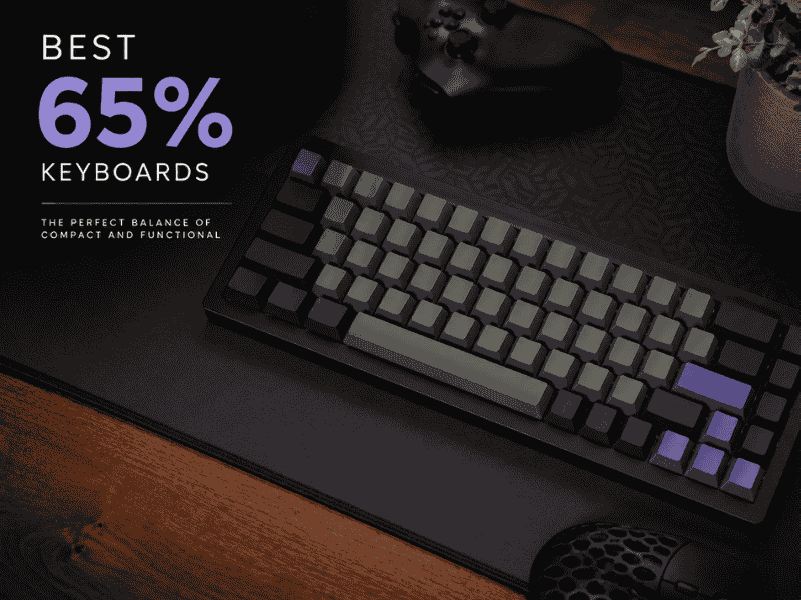
Explore the best 65% keyboards with compact layouts, customizable switches, and premium builds for typing and gaming in tight spaces.
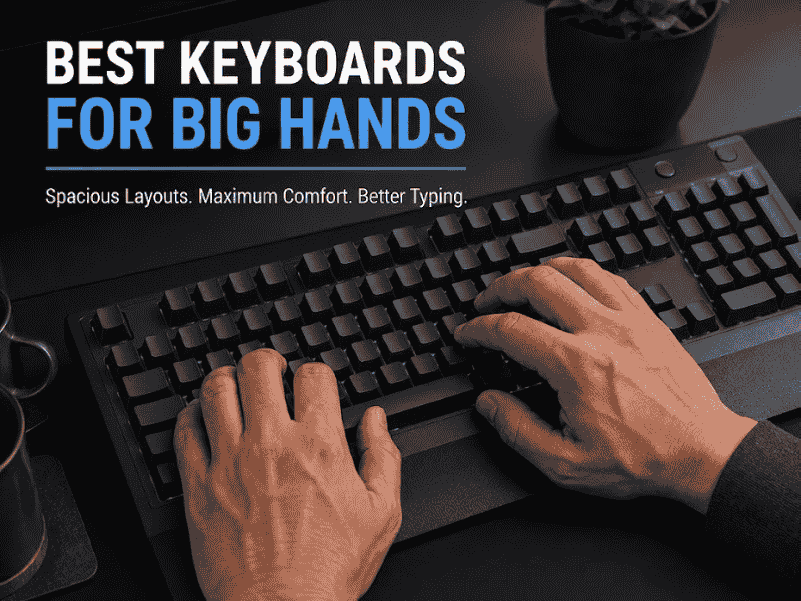
Best keyboards for big hands: find ergonomic layouts, oversized keycaps, and adjustable angles for comfortable, snag-free typing every session.
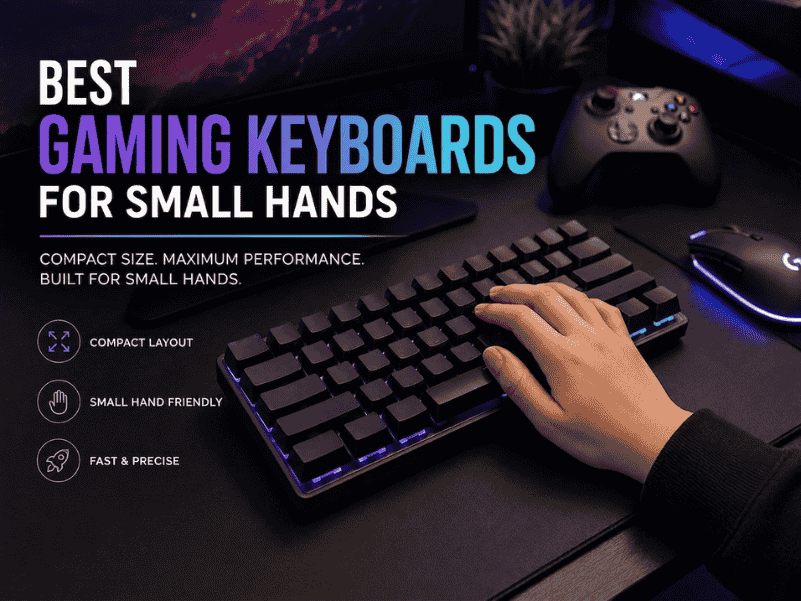
Best gaming keyboards for small hands feature compact layouts, responsive switches, and ergonomic designs for precise control and comfort.
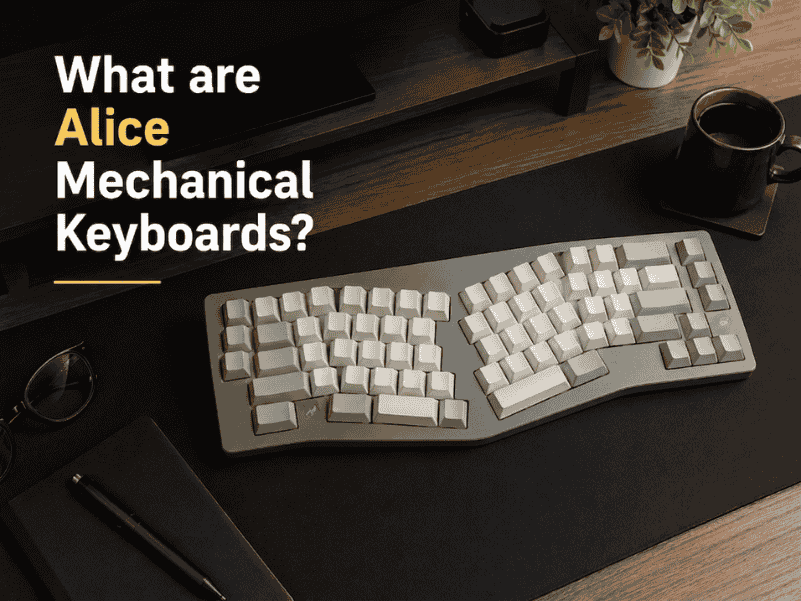
What are Alice Mechanical Keyboards? Learn ergonomics, Alice vs Arisu vs split, who should buy one, and the best beginner boards.