If switches are the keys on a piano, the PCB is both the pianist and the instrument itself. You can press a key all day, but without something underneath translating that movement into sound, nothing happens. In a mechanical keyboard, that “something” is the PCB. It’s the quiet layer doing the real work. Every keypress, every RGB glow, every macro you program runs through it.
And yet, for most beginners, the PCB remains the most mysterious part of the entire build. Switches are tangible. Keycaps are visible. Even stabilizers make sense once you see them. But the PCB? It looks like a flat green board covered in cryptic components and solder points. It’s not obvious what it actually does, why there are different types, or why one PCB can feel completely different from another.
That confusion is completely normal. The PCB sits at the center of everything, yet it’s rarely explained in a way that connects the dots.
This guide changes that. You’ll learn what a mechanical keyboard PCB actually does, how its components work together, and the critical difference between soldered and hot-swap designs. We’ll also explore why thickness and flex cuts matter, and how to choose the right PCB for your next build. By the end, it won’t feel like a mysterious slab of electronics. It’ll feel like the control center of your keyboard because that’s exactly what it is.
What Is a Mechanical Keyboard PCB? The Brain of Your Board
A mechanical keyboard PCB is the circuit board that sits under your switches and turns physical presses into digital signals. When you press a key, the switch closes a circuit. The PCB detects that change, interprets it, and sends the signal to your computer. That’s the core function. No PCB, no input.
It’s easy to overlook because you don’t see it once the keyboard is assembled. But everything depends on it. Switches sit on it. Stabilizers anchor into it. Firmware runs through it. Even the typing feel can be influenced by its thickness and design.
Think of it as the foundation of the build. If the case is the frame and the switches are the moving parts, the PCB is the infrastructure that makes the entire system coherent. It decides layout compatibility. It determines whether you can hot-swap switches or solder them. It controls RGB. It defines whether you can remap keys with firmware like VIA or QMK.
You can upgrade keycaps anytime. You can change switches if your PCB allows it. But the PCB itself shapes the limits of what your keyboard can become. That’s why understanding it early saves frustration later.
Anatomy of a PCB (A Visual Breakdown)
At first glance, a PCB looks like a flat board with random chips and lines. Once you know what you’re looking at, it starts to make sense.

A GH60 Rev C PCB with labeled components. This soldered PCB shows the MCU, USB port, diodes, switch pads, and mounting holes. Hot-swap boards replace the solder pads with socket housings.
This is the brain. The microcontroller scans the keyboard matrix, processes key presses, and communicates with your computer. It runs the firmware. Every macro, layer, and remap lives here. If the MCU is limited, your customization options are limited. Most modern custom keyboards use ARM-based MCUs, which offer more memory and processing power than older 8-bit chips.
Those thin copper lines running across the board form a grid called the matrix. Each key sits at an intersection of a row and a column. The MCU constantly scans this grid, checking for completed circuits when you press a key. That’s how it knows exactly which key was activated.
Small, often overlooked components next to each switch position. Diodes control the direction of electrical flow. Without them, pressing multiple keys at once could cause ghosting where unintended keys register or blocking, where some key presses are simply ignored. Diodes prevent that by isolating each switch’s signal. They’re the reason modern mechanical keyboards support proper n-key rollover (NKRO) allowing every keypress to register simultaneously.
This is where the switch connects to the PCB. On a soldered PCB, you insert the switch pins and solder them in place permanently. On a hot-swap PCB, sockets usually Kailh hot-swap sockets are pre-installed, allowing you to push switches in and pull them out without soldering. The difference here affects flexibility, cost, and long-term maintenance.
Mini-USB, Micro-USB, or USB-C. This is the physical bridge between your keyboard and your computer. It’s soldered directly onto the PCB and connected to the MCU. USB-C is now standard in most modern custom builds because it’s sturdier, reversible, and supports higher data transfer (though keyboards don’t need much).
These small holes might look insignificant, but they determine whether your PCB will actually fit inside your case. Mounting holes align with standoffs or gasket system posts in the case. They secure the PCB in place and affect how flex is distributed across the board. If the mounting points don’t match your case, the build simply won’t work.
The 3 Most Important PCB Choices You Must Make
At some point, theory stops mattering and decisions start. When choosing a PCB, three choices shape everything that follows. Get them right and your build feels intentional. Get them wrong and you’re working around compromises from day one.
Let’s go through them in the order that actually affects your build.
1. Form Factor (Size & Layout)
Your PCB defines the physical size of your keyboard and the exact key layout it supports. You can’t turn a 60% PCB into a TKL later. This decision locks in your structure permanently.

Mechanical keyboard size comparison from 100% to 40%. Color-coded key groups show exactly what you gain or lose as you move to smaller form factors.
Why size matters beyond space: Form factor affects more than desk footprint. It determines how often you’ll use layers, how reachable your keys feel, and even resale value. A 60% board requires memorizing hold-functions for arrows. A 75% gives you everything at face value.
2. Connectivity (Wired vs. Wireless)
Your second decision is how the PCB talks to your computer.
Wired PCBs are the most common. They connect through USB, with USB-C now the standard. They’re simpler, often cheaper, and don’t involve batteries. No charging. No pairing. No power management. Just plug in and type. They also tend to offer more RGB flexibility since power isn’t constrained.
Wireless or Bluetooth PCBs add freedom. Clean desk. Portable setup. Multi-device pairing. But they introduce complexity: battery placement, charging circuits, sleep modes, and sometimes reduced RGB to preserve power.
Some enthusiast builds use controllers like the nice!nano to convert standard boards into low-power wireless setups. That opens interesting possibilities, but it’s not plug-and-play beginner territory.
3. The Big One: Hotswap vs. Soldered
This is the decision that defines your building experience. It affects cost, flexibility, and how connected you feel to the board.

Soldered connections (top) permanently attach switches. Hotswap sockets (down) let you insert and remove switches without soldering.
With a soldered board, you physically attach each switch by melting solder into the joints. The connection is direct and permanent unless you desolder it later.
Best for: People who enjoy the building process itself. Those chasing rare layouts. Builders who don’t mind committing to a switch choice.
Hotswap boards use pre-installed sockets usually Kailh hot-swap sockets. You push switches in. You pull them out. No soldering iron involved.
Best for: Beginners. Switch collectors. Anyone who likes the freedom to experiment without tools.
Here’s the thing: these decisions aren’t isolated. Your form factor affects which hotswap PCBs are available. Your connectivity choice determines whether you’ll deal with batteries. Your hotswap decision influences how often you’ll experiment.
A typical beginner-friendly build looks like this:
- Form Factor: 65% or 75% (arrow keys, manageable size)
- Connectivity: Wired (simpler, cheaper)
- Mounting: Hotswap (no soldering required)
An advanced enthusiast build might be:
- Form Factor: 40% (compact, layer-heavy)
- Connectivity: Wireless (clean desk aesthetic)
- Mounting: Soldered (rare layout, committed build)
Choose based on how you build, not just how you type. The PCB you pick today will shape every interaction you have with that keyboard.
How the PCB Affects Your Keyboard’s Feel and Sound
Once you move past basic functionality, the PCB stops being just a circuit board. It becomes part of the mechanical system that shapes how your keyboard feels under your fingers and sounds in a quiet room.
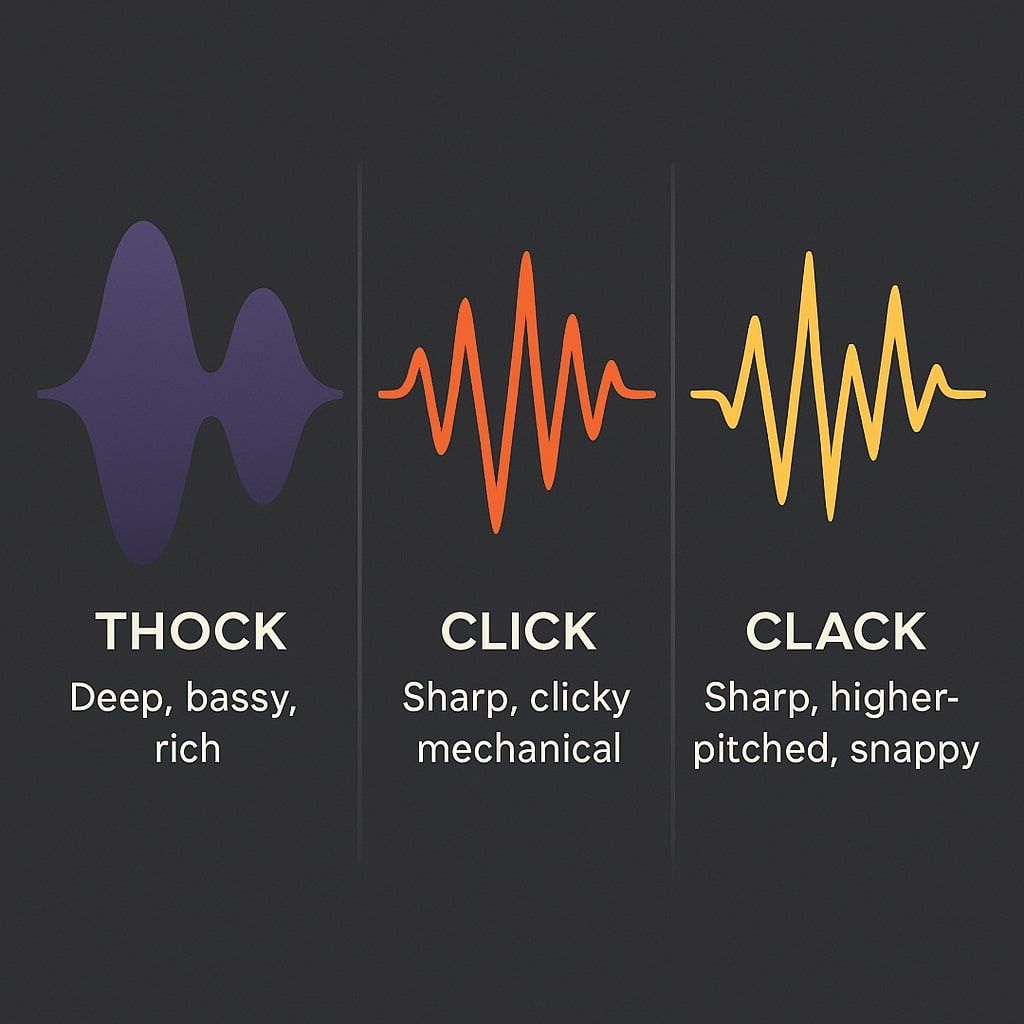
Typing feel isn’t only about switches. It’s about how the entire assembly moves together. The PCB’s thickness, its flex cuts, and especially its mounting style all influence stiffness, bounce, resonance, and unwanted noise.
This is where enthusiast territory begins.
How Mounting Style Changes Everything
The way a PCB is secured inside the case directly transforms the typing experience. Same switches. Same keycaps. Completely different feel.

Cross-section comparison of tray mount, top mount, and gasket mount PCB installations. Note how gasket mount floats the assembly on Poron strips for a softer typing feel.
Tray mount is straightforward and cost-effective, which is why entry-level boards use it. The downside? Pressure points. Screws anchor specific areas tightly, creating uneven stiffness. It works. It’s stable. It just isn’t refined.
Top and bottom mount distribute pressure more evenly across the structure. The result is a more uniform typing feel with fewer inconsistencies. Many mid-to-high tier boards prefer this balanced approach.
Gasket mount has exploded in popularity for good reason. Rubber or silicone strips act as shock absorbers. When you type, the assembly compresses slightly. The feel is cushioned, slightly bouncy, more forgiving. Vibrations get absorbed rather than transmitted into the case, producing deeper acoustics.
The Plate’s Role
The PCB doesn’t work alone. It pairs with the plate the frame that holds switches in alignment.
Most builds use plates made of:
- Aluminum / Steel / Brass: Firmer feel, sharper sound
- Polycarbonate: Softer feel, deeper tone
- No plate (PCB-mount): Maximum flex, muted sound
Metal plates add rigidity. They make switches sit firmly and vibrations travel crisply. Polycarbonate flexes more and softens the bottom-out feel. Going plateless lets switches clip directly into the PCB, creating the most flex and a muted, forgiving response.
This combination of PCB design, mounting style, and plate material creates your final typing experience. Switches matter, but the structure underneath them shapes how those switches actually behave.
Once you understand that, you stop chasing feel through switches alone. You start thinking in systems.
Beyond the Basics: Firmware and Features
At some point, you stop asking what a PCB is and start asking what it can do. This is where a board shifts from being a typing tool to something programmable and personal. When two PCBs look similar on paper, firmware support and lighting features are often the real deciding factors. They determine how much control you’ll have after the build is finished.
For custom keyboards, firmware support isn’t a small detail. It’s the difference between fixed functionality and total control.
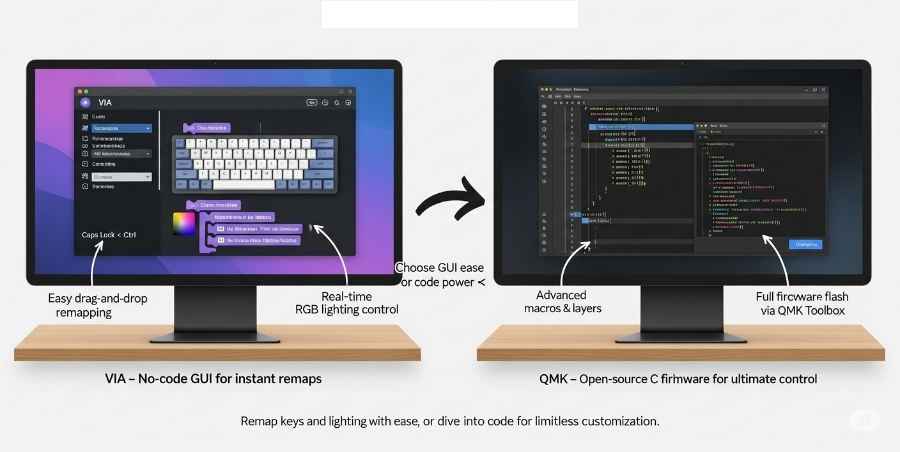
QMK (Quantum Mechanical Keyboard) is the most powerful open-source firmware in the mechanical keyboard world. It lets you program every key on your board. Not just remap letters. You can:
- Create multiple layers
- Assign complex macros
- Change tap-hold behaviors
- Adjust debounce settings
- Fine-tune deep keyboard behavior
It’s incredibly capable. It can also feel intimidating if you’ve never worked with firmware before.
That’s where VIA comes in.
VIA is a graphical interface built on top of QMK. Instead of compiling firmware manually, you connect your keyboard and make changes through a clean visual layout. Drag. Click. Assign. Changes apply instantly.

Image credit: (Amazon)
The VIA software interface. Drag and drop to remap keys, create layers, and assign macros without touching code.
For beginners, VIA support is a major advantage. It removes friction. You don’t need to touch code. You don’t need to reflash firmware every time you tweak a layout.
Lighting isn’t just cosmetic. It changes how your board looks at night, how legends show through keycaps, and how the board reflects off your desk.
Each switch has its own LED. Every key can display a different color, react independently, or sync with effects.
LEDs are mounted along the bottom of the PCB, shining downward onto your desk or deskmat.
Underglow creates a soft halo effect. It’s subtler. More atmospheric. Less about individual key highlights and more about overall ambiance.
When choosing a PCB, think about whether lighting is decorative or part of your setup identity. That answer will steer your decision more clearly than any spec sheet.
Common PCB Issues and How to Fix Them
No PCB is immune to issues. Even high-end boards can develop problems. The difference is knowing what to check and when to worry.
Here are the most common problems and exactly how to diagnose them.
The quick test: Take a pair of metal tweezers and briefly touch the two switch pads on the PCB where the switch sits. This manually closes the circuit.
- If the key registers: The PCB is fine. Your switch is likely faulty or not seated properly. Replace the switch.
- If nothing happens: The issue is deeper a bad solder joint, a damaged trace, or a diode failure.
Next step: Inspect the solder joints on that key. If you see a cracked or dull joint, reflowing it with a soldering iron often fixes the problem.
This usually points to a matrix issue. Multiple keys failing in a line suggests the problem isn’t individual switches.
Common causes:
- A damaged trace connecting that row or column
- A failed diode (the small components near each switch)
- A loose ribbon cable (on split or pre-built boards)
Fix: Check the PCB carefully along that row for visible damage. If you find a broken trace, a thin jumper wire can restore the connection. For diode failure, replacing the diode brings the row back.
Your computer doesn’t see the keyboard. No lights. No response.
Step-by-step diagnosis:
- Try a different USB cable. Cables fail more often than you’d think.
- Try a different USB port. Some ports, especially on hubs, don’t deliver enough power.
- Check for shorts. Look closely at the USB port on the PCB. Are the pins soldered cleanly? Is anything touching that shouldn’t be?
- Inspect the MCU. If the main chip looks burnt or cracked, that’s beyond DIY repair.
If none of these work, the PCB may need professional repair or replacement.
You’ll notice this as keys that work sometimes but not always, or a row that stops working and then randomly starts again.
This is often called “dying” in the community. It happens when a connection in the matrix becomes intermittent working when pressure is applied, failing when released.
Common culprits:
- Cold solder joints (cracked and making poor contact)
- Hairline fractures in PCB traces
- Loose connections on ribbon cables
Fix: Reflowing solder joints in the affected area is the first step. If that doesn’t work, you’re looking at a damaged trace that needs a jumper wire or, in rare cases, a full PCB replacement.
The golden rule of PCB troubleshooting: isolate the variable.
- Test the switch first (tweezers method)
- Test a known-working switch in the problem socket
- Test the problem switch in a known-working socket
This tells you whether the issue follows the switch or stays with the PCB. Once you know that, you know where to focus.
Not every PCB is worth saving. If you’ve tried troubleshooting, reflowed joints, and the problem persists, consider the cost of your time versus the cost of a replacement.
A new PCB often costs less than the frustration of chasing a ghost issue. Sometimes the smart fix is starting fresh.
How to Choose the Right PCB for Your First Build
By now, you know what a PCB does, how it affects feel, and what features matter. The question is: which one should you actually buy? Here’s a simple framework for your first build.

A simple decision path for first-time builders: choose a hotswap PCB with VIA support and a standard wired layout.
Your PCB determines your keyboard’s size. Ask yourself:
- Do you need a numpad daily? Go full size (100%) .
- Want function keys but not a numpad? TKL (80%) .
- Need arrows but can live without F-keys? 65% .
- Want maximum desk space and don’t mind layers? 60% .
Rule of thumb: Choose the smallest size that doesn’t frustrate your workflow. You can’t add keys later.
- Wired: Simpler, cheaper, no batteries. Set it and forget it.
- Wireless: Clean desk, portable, but adds battery management.
For a first build, wired removes complexity. Save wireless for your second board.
This combination removes nearly every frustration.
- Hotswap means you can change switches without soldering. Try clicky, linear, tactile all on one board.
- VIA support means you can remap keys through a visual interface. No code. No compiling. Just drag and drop.
If a PCB offers both, it’s the smart choice for a first build. You get flexibility now and room to experiment later.
A PCB isn’t standalone. It needs to fit your case.
Before buying, confirm:
- Mounting points: Do the holes align with your case’s standoffs?
- USB cutout: Does the port line up with the case opening?
- Layout support: Does it support the exact key arrangement you want (e.g., split spacebar, stepped Caps Lock)?
Most product pages list compatible cases. When in doubt, buy a PCB and case sold as a kit together.
Your first PCB doesn’t need to be perfect. It needs to be forgiving.
Hotswap lets you recover from mistakes. VIA lets you fix layout choices without rebuilding. A standard 60% or 65% layout ensures you’ll find cases and keycaps easily.
Choose something that lets you enjoy the hobby, not fight it. The perfect board comes later. The first one just needs to get you started.
Conclusion: Your PCB, Your Foundation
You started with a mysterious slab of fiberglass and copper. Now you know it’s the nervous system of your keyboard the layer that decides what your build can become.
The PCB shapes everything that follows. It locks in your form factor. It determines whether you can experiment with switches or commit to one choice. It decides which software you’ll use and how much control you’ll have. Keycaps can be swapped. Switches can be changed. But the PCB is the foundation you build around.
If you’re planning your first build, here’s what to remember:
Your first PCB doesn’t need to be endgame. It just needs to be forgiving.
Hotswap lets you recover from curiosity. VIA lets you fix layout experiments without reflashing. A common size like 60% or 65% means you’ll never struggle to find compatible cases or keycaps.
The perfect board comes later after you’ve learned what you actually want. The first one just needs to get you started.
Every custom keyboard starts the same way: someone chose a PCB and took a chance. The rest is just assembly.
You now know more than most people do when they order their first board. Trust that knowledge. Pick something that excites you. And remember: the PCB decides what’s possible. Everything else is just expression.
What form factor are you considering for your first build? Drop it in the comments I’d love to hear what you’re planning.